How to Find the Best Moments Faster When Editing Weddings and Events
Oct 12, 2026
VMPL
New Delhi [India], October 12: Event footage cannot be recreated once the occasion ends. A wedding filmed with several cameras may produce hundreds of clips. Those clips often cover identical moments from different positions. The main challenge is selecting the strongest angle efficiently.
Wondershare Filmora 16 helps reduce the time spent reviewing event footage. Editing speed depends heavily on finding the right shot quickly. Each important moment may appear across several camera angles. That selection process repeats throughout the entire highlight edit.
Part 1. Identify Valuable Event Footage With AI Media Analysis
Large event projects often contain hundreds of similar media files. Reviewing every clip manually can delay the initial selection process. AI Media Analysis helps evaluate large video and image collections. It provides keywords, descriptions, ratings, and editing suggestions for analyzed media.
These results support different stages of initial footage selection. Keywords make specific subjects or moments easier to locate. Descriptions summarize clip content without requiring complete playback. Ratings help compare several shots covering similar event moments. Editing suggestions can highlight footage with stronger production potential. The analysis becomes especially useful across common event categories:
- Ceremony Moments: Find entrances, vows, exchanges, and other structured moments. Similar angles can then be compared using analysis results.
- Guest Reactions: Surface candid expressions, applause, laughter, and audience responses. These moments are often difficult to locate through scrubbing.
- Venue Coverage: Identify establishing shots showing locations, rooms, and surroundings. Such footage helps establish context before major event sequences.
- Detail Shots: Locate rings, flowers, decorations, signage, and table settings. These clips often provide useful transitions between larger moments.
- Event Activities: Surface speeches, dancing, performances, and other movement-driven footage. Ratings can assist when several cameras captured identical activity.
AI Media Analysis supports both video clips and image content. This is useful when event projects contain mixed media. Photographer images can therefore be reviewed beside recorded video footage.
Note: Standalone audio files are outside this analysis workflow. Separate speech recordings require independent organization and audio review.
Part 2. Shape Selected Event Footage Into a Coherent Story
Selected footage still requires structure before detailed editing begins. Event videos usually follow a clear chronological sequence. Ceremony, speeches, portraits, reception, and dancing create natural sections. Organizing clips around that timeline simplifies later editing decisions.
Low-value material should be removed before detailed refinement begins. Duplicate angles, unusable focus, and obstructed shots add review time. However, unique reactions and alternative angles may remain valuable. Event footage often contains moments that cannot be recreated.
Usually Safe to Remove:
- Clips with consistently missed focus.
- Empty or unusable handheld footage.
- Shots blocked by passing guests.
- Repeated footage with stronger alternatives.
Often Worth Keeping:
- A second angle covering a unique moment.
- A wider backup when close framing fails.
- Cleaner audio from another camera angle.
- Reactions visible from only one position.
Several angles on one moment are easier handled as a single unit. Select the clips, right-click, and choose Create Multi-Camera Clip, then sync them by audio waveform, first frame, or markers. Filmora supports up to 16 angles, and cutting between them happens by clicking an angle while it plays.
Camera Tracking follows a selected subject and adjusts the framing as that subject moves through the shot. Head, Body, and Custom target modes support different event scenarios, including entrances, dancing, and walking guests. Motion Tracking instead links graphics or effects to movement, while Auto Reframe adapts footage for different aspect ratios.
Color Mask supports selective adjustments within specific frame areas. Faces, stages, or backgrounds can therefore receive different treatment. This is useful when event lighting varies across one shot.
For Mac-based event editing, Mac video editing software should keep these tools within the same workflow. This reduces unnecessary movement between separate editing applications.
Note: Nothing here can be reshot, which changes how aggressively you cull. On a personal project, a weak clip is waste. At an event, it may be the only footage of somebody who came.
Part 3. Test the Workflow With a Smaller Event Sequence
A smaller event sequence provides a practical workflow test. It shows how analysis, multicamera editing, captions, and grading perform together. A Filmora free download can support this process from analysis through export.
Step 1. Analyze One Event Section
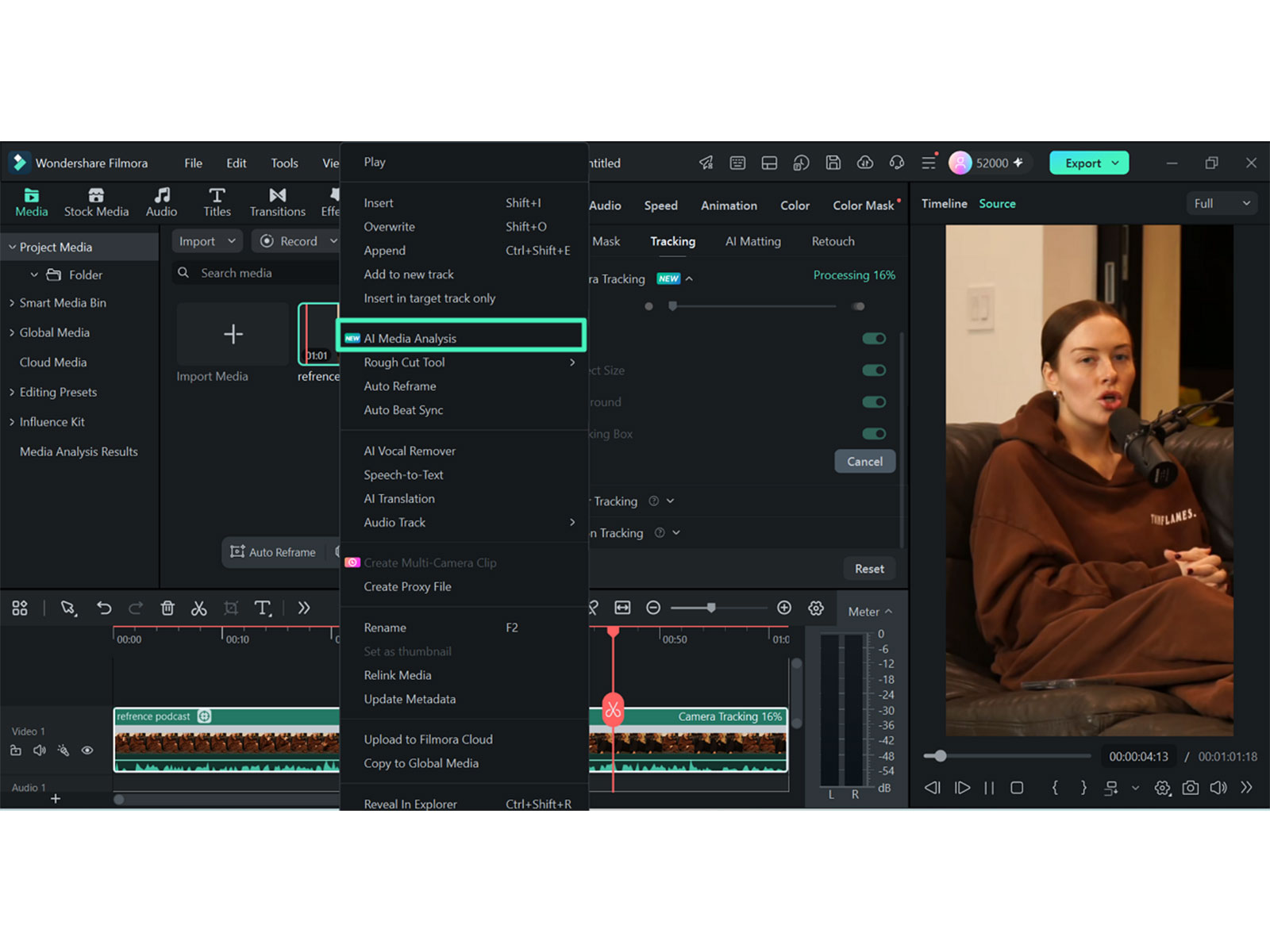
Open “Media,” import a short event section, and select the clips. Right-click them, choose “AI Media Analysis,” then review “Keywords,” “Descriptions,” and “Ratings” for useful footage.
Step 2. Arrange the Selected Clips
Drag shortlisted clips onto the “Timeline” and place them chronologically. Keep ceremony actions, reactions, and supporting shots together so missing coverage becomes easier to identify before detailed editing.
Step 3. Build the Multi-Camera Sequence
Select clips covering the same moment, right-click, and choose “Create Multi-Camera Clip.” Select a synchronization method, open the sequence, then switch between available angles during playback.
Step 4. Apply Camera Tracking
Select the required clip on the “Timeline,” open “Video,” then enable “Camera Tracking.” Choose “Head,” “Body,” or “Custom” to maintain consistent framing around moving subjects.
Step 5. Add Motion to Still Images
Drag the photograph onto the “Timeline,” right-click it, and select “Crop and Zoom.” Set different starting and ending frames to create controlled movement across the still.
Step 6. Finish and Export the Segment
Generate captions with “Speech to Text,” review important text, apply color adjustments, then select “Export.” Save the sequence as a draft and record the total editing time.
Note: The draft is also the safest thing to show a client early. A 2-minute segment sets expectations about pacing and style before you have built eight hours around the wrong idea.
Conclusion
Event editing becomes more efficient when footage is organized before detailed cutting begins. AI-assisted analysis helps identify useful moments, while chronological structure and multi-camera editing simplify selection. Careful tracking, color adjustment, and caption review improve the final result. For event creators managing large media libraries, Filmora provides these tools within one connected editing workflow.
(ADVERTORIAL DISCLAIMER: The above press release has been provided by VMPL. ANI will not be responsible in any way for the content of the same.)